App 02 · Mac
Cue.
Your words, on cue.
A native macOS teleprompter for the Markdown scripts you already have. Point it at a folder, pick a script, and read it on your prompter.
Free · macOS 14 Sonoma or later · Apple silicon & Intel
Try it here
Markdown in. Words out.
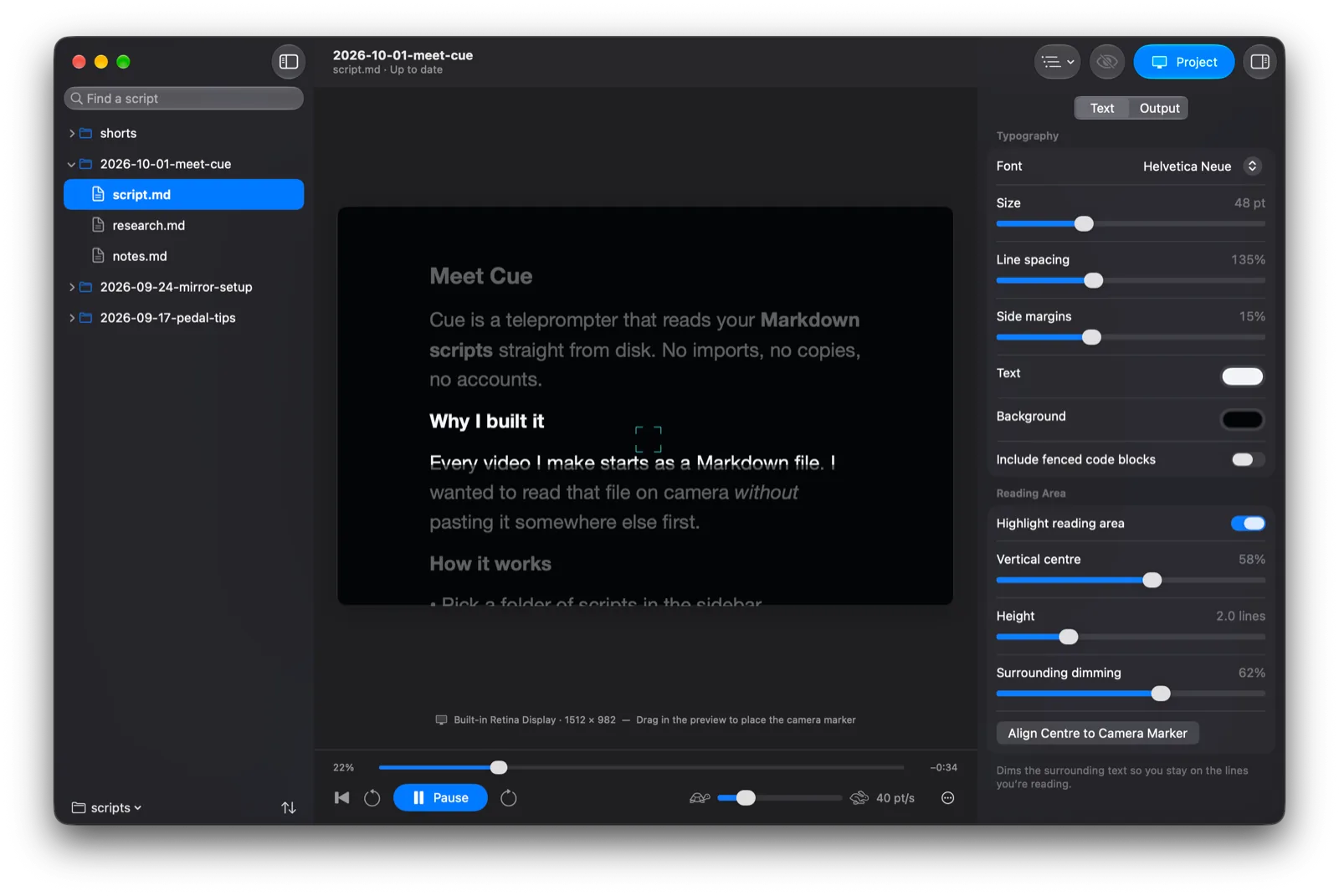
A script as it sits on disk, and what Cue puts on the prompter: no symbols, no frontmatter, no notes to self. Change the speed, mirror it for the glass, or hold the pedals.
1---hidden · frontmatter2title: Meet Cuehidden · frontmatter3---hidden · frontmatter4<!-- Slow down on the second line -->hidden · comment56# Meet Cue78Cue is a teleprompter that reads your **Markdown scripts** straight from disk. No imports, no copies, no accounts.910## Why I built it1112Every video I make starts as a Markdown file. I wanted to read that file on camera *without* pasting it somewhere else first.1314hidden · image1516## How it works1718- Pick a folder of scripts19- Choose one and press Play20- Tap the pedal to take a breath2122> Edit in any app. Cue reloads as you save.2324That’s it. Let’s roll.
Prompter preview: the script above, rendered without its Markdown symbols and scrolling at the chosen speed.
Try the pedal. Hold a side pedal to scroll, tap the centre to play or pause.
What it does
Everything a prompter needs.
Cue does one job: put your words in front of the lens, in your rhythm, without making you change how you write.
Your files, untouched
Point Cue at a folder of Markdown scripts and browse them in a searchable, sortable sidebar. It never copies, imports or writes to them.
Live reload
Save in any editor and Cue picks up the change within a second, keeping your place in the script.
Written to be read aloud
Headings, paragraphs, lists, emphasis and quotes appear without Markdown symbols. Frontmatter, comments, images and code blocks stay out of the way.
Prompter output
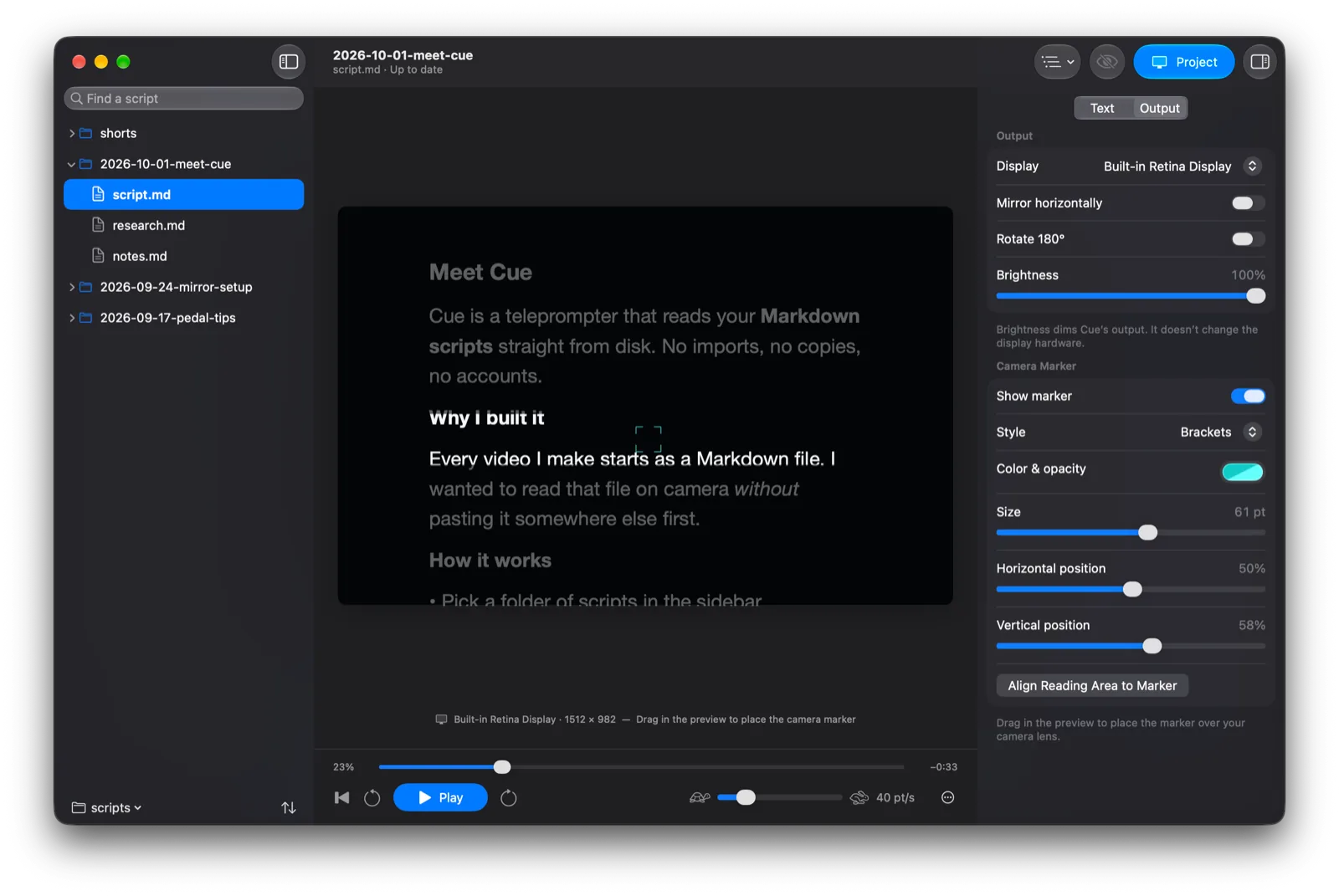
Project to any display. Elgato prompters are picked automatically. Mirror or rotate for beam-splitter glass, and dim the output.
Reading area and camera marker
Highlight the lines you’re reading, dim the rest, and line both up with a marker placed over your camera lens.
Stream Deck Pedal
Hold the side pedals to scroll and tap the centre to play or pause, even while another app has focus.
Global shortcuts
Play, project, black out and rewind from any app. They’re registered hotkeys, so no Accessibility permission is needed.
Properly native
SwiftUI, AppKit, TextKit and IOKit. No web view, no Electron, no account and no server.
Output
Built for the glass.
- Mirror horizontally or rotate 180° for beam-splitter rigs.
- A borderless output window that never takes focus, across Spaces and full-screen apps.
- A LIVE badge while projecting, and a blackout that hides the script without stopping.
- A crosshair, brackets, dot or reading-line marker that stays over the lens even when the text is mirrored.
- Projection stops on its own if the display disconnects.
Hands-free
Pedal down, eyes up.
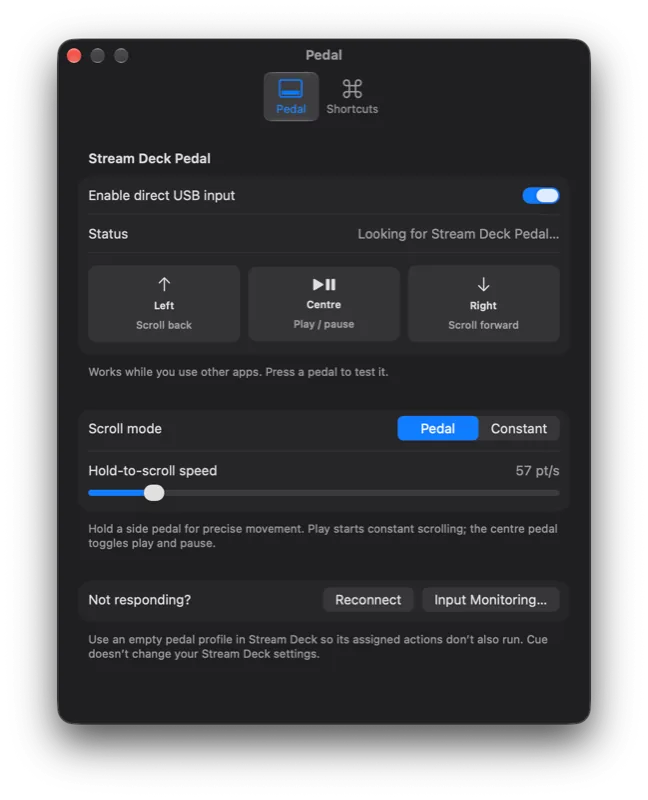
Cue reads an Elgato Stream Deck Pedal directly over USB. It sends no keystrokes, so it works whichever app has focus, and it never changes your Stream Deck setup.
The pedal
- Hold left
- Scroll back
- Tap centre
- Play / pause
- Hold right
- Scroll forward
Releasing a side pedal stops the movement, and playback resumes if it was running. Hold-to-scroll speed is set separately from playback speed.
Shortcuts that work from any app
- Play / pause
- ⌃⌥⌘Space
- Project / stop projecting
- ⌃⌥⌘P
- Blackout / show script
- ⌃⌥⌘B
- Back to start
- ⌃⌥⌘R
- Stop projecting
- Esc
Esc only stops projecting while the pointer is over the output display, so it keeps working normally everywhere else.
Getting started
Five steps to your first take.
- 01
Choose your scripts folder
From the sidebar’s folder menu or File → Choose Scripts Folder (⇧⌘O). You can also open a single file with ⌘O.
- 02
Pick a script
The preview shows exactly what your prompter will display.
- 03
Set up the output
In the Output tab, choose the prompter display and turn on mirroring or rotation if your rig needs it.
- 04
Place the camera marker
Drag in the preview to put it over your lens, then align the reading area to it.
- 05
Project and play
Click Project, then press Play or tap the centre pedal.
Installing
Before you press play.
Signed and notarized.
Download the DMG, drag Cue into Applications and open it. It’s signed with a Developer ID and notarized by Apple, so it opens like any other app.
One permission, only for the pedal.
If macOS blocks USB input from the Stream Deck Pedal, allow Cue under System Settings → Privacy & Security → Input Monitoring, then click Reconnect. The keyboard shortcuts need no permissions at all.
Details
The specs.
- Price
- Free, with every feature
- Requires
- macOS 14 Sonoma or later
- Runs on
- Apple silicon and Intel
- Distribution
- Notarized DMG from GitHub
- Works with
- Any display, Elgato Prompter, Stream Deck Pedal
- Account
- None
- Data collected
- None
- Built with
- Swift, SwiftUI, AppKit, TextKit, IOKit
Questions
Cue FAQ.
Something else? Visit support.
Ready when you are.
Download the latest release from GitHub, drag Cue into Applications, and point it at your scripts.